Technical SEO Audit for SaaS: Your Step-by-Step Checklist

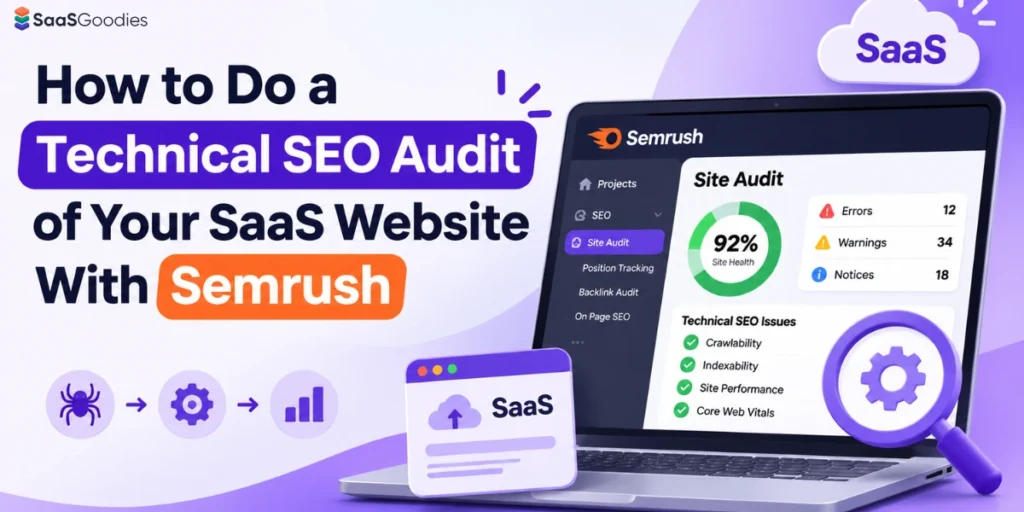
SaaS websites break in sneaky ways. A marketing site on one stack, docs on another, the app on a third subdomain.
Google sees all of it. So do AI crawlers now.
A proper technical SEO audit catches the crawl traps, broken redirects and JavaScript gaps quietly bleeding your signups.
Semrush Site Audit is one of the fastest ways to find them. It checks over 140 on-page and technical issues, renders JavaScript, and now scores your AI search readiness too.
We'll walk you through the full Semrush Site Audit setup for a SaaS site, the settings that matter, the reports worth your time, and the fixes that move rankings.
Technical SEO Audit for SaaS: A Quick Overview
Mapping Your SaaS Site Before the First Crawl
Here's where most SaaS audits go wrong. People type the root domain, hit start, and get a confusing mix of blog, docs, app and help center pages.
Map your site first. Ten minutes here saves hours later.
Typical SaaS Site Sections
Decide What Each Audit Covers
Semrush lets you audit a domain, subdomain or subfolder. You can also toggle “Crawl all subdomains” on a domain.
Step by Step Semrush Site Audit Setup for a SaaS Website
Step 1. Create the Project and Open Site Audit
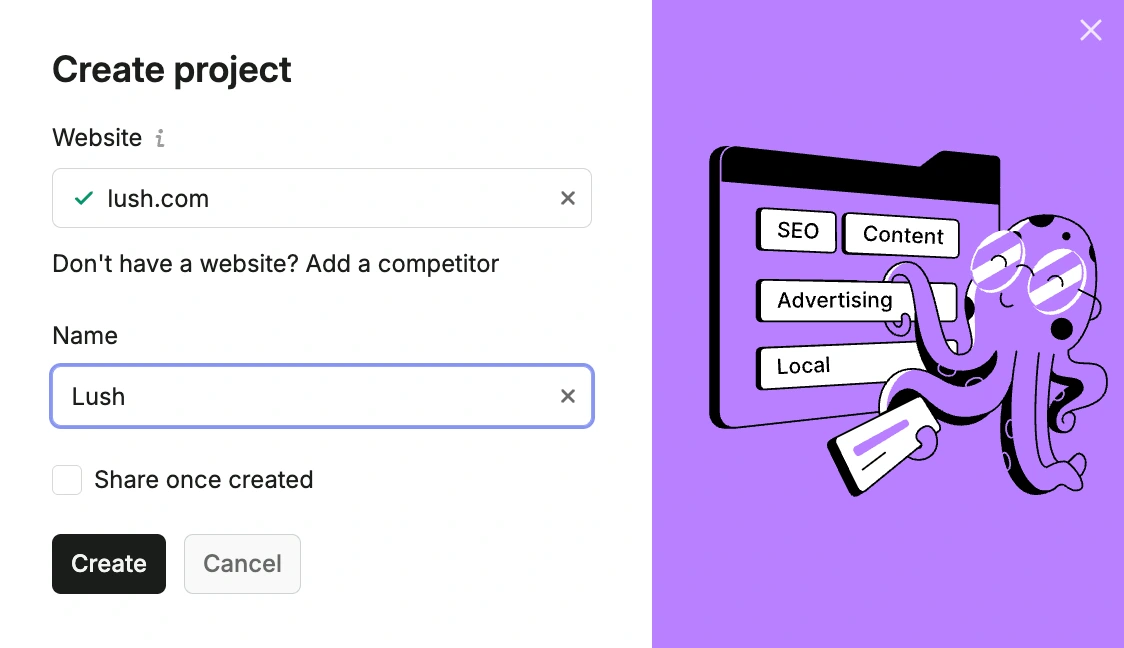
- Create a project for your domain in Semrush.
- Your first project starts a Site Audit campaign automatically. Later projects need manual setup.
- Open Site Audit and click the setup button to configure the crawl.
Step 2. Set the Scope and Page Limit
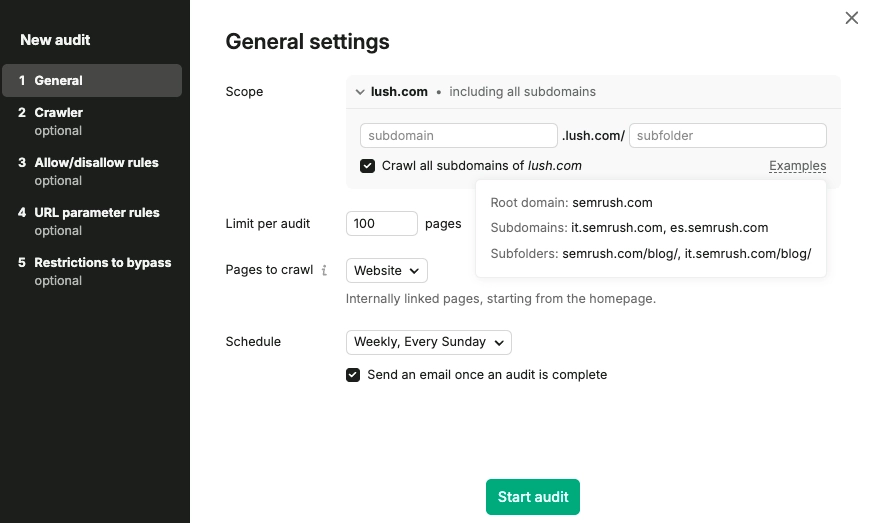
- Enter the domain, subdomain or subfolder you mapped earlier.
- Decide on “Crawl all subdomains.” For SaaS, usually off, so app subdomains stay out.
- Set a page limit per audit within your plan, up to 20,000 on Pro and Guru or 100,000 on Business.
Step 3. Choose the Crawl Source
| Crawl Source | How It Works | When to Use It on SaaS |
|---|---|---|
| Website | Follows links from the homepage, breadth first | Finding orphan pages and checking internal linking |
| Robots.txt sitemap | Crawls only URLs in the sitemap linked from robots.txt | Checking that the sitemap holds only clean, indexable URLs |
| Sitemap by URL | Crawls one sitemap you enter | Auditing one section, like docs or blog |
| Import URLs from file | Crawls a .csv or .txt file, one URL per line | Priority pages only, like pricing and feature pages, to save crawl budget |
Website crawling finds pages reachable from the homepage, not necessarily the most important ones. So for big SaaS sites, we often add a second audit with a file of money pages.
Step 4. Configure Crawler Settings
- User agent: SiteAuditBot Mobile is the default. Desktop is also available. A newer option, OpenAI-Search, checks crawlability for OpenAI's search bot.
- Crawl delay: Minimum delay is the fastest, around one second between pages. Pick “1 URL per 2 seconds” or “Respect robots.txt” if your server struggles.
- JS rendering: Turn it on for JavaScript heavy sites. Requires Guru or Business.
Googlebot Desktop and Mobile are no longer selectable as user agents. Older campaigns already using Googlebot keep it until you change the setting.
Step 5. Set Allow and Disallow Rules
- Allow only the paths you want, such as /blog/ or /integrations/.
- Disallow paths like /login/, /signup/ or /account/.
- Always include the trailing slash. Without it, /docs also matches /docs-old.
Step 6. Remove URL Parameters
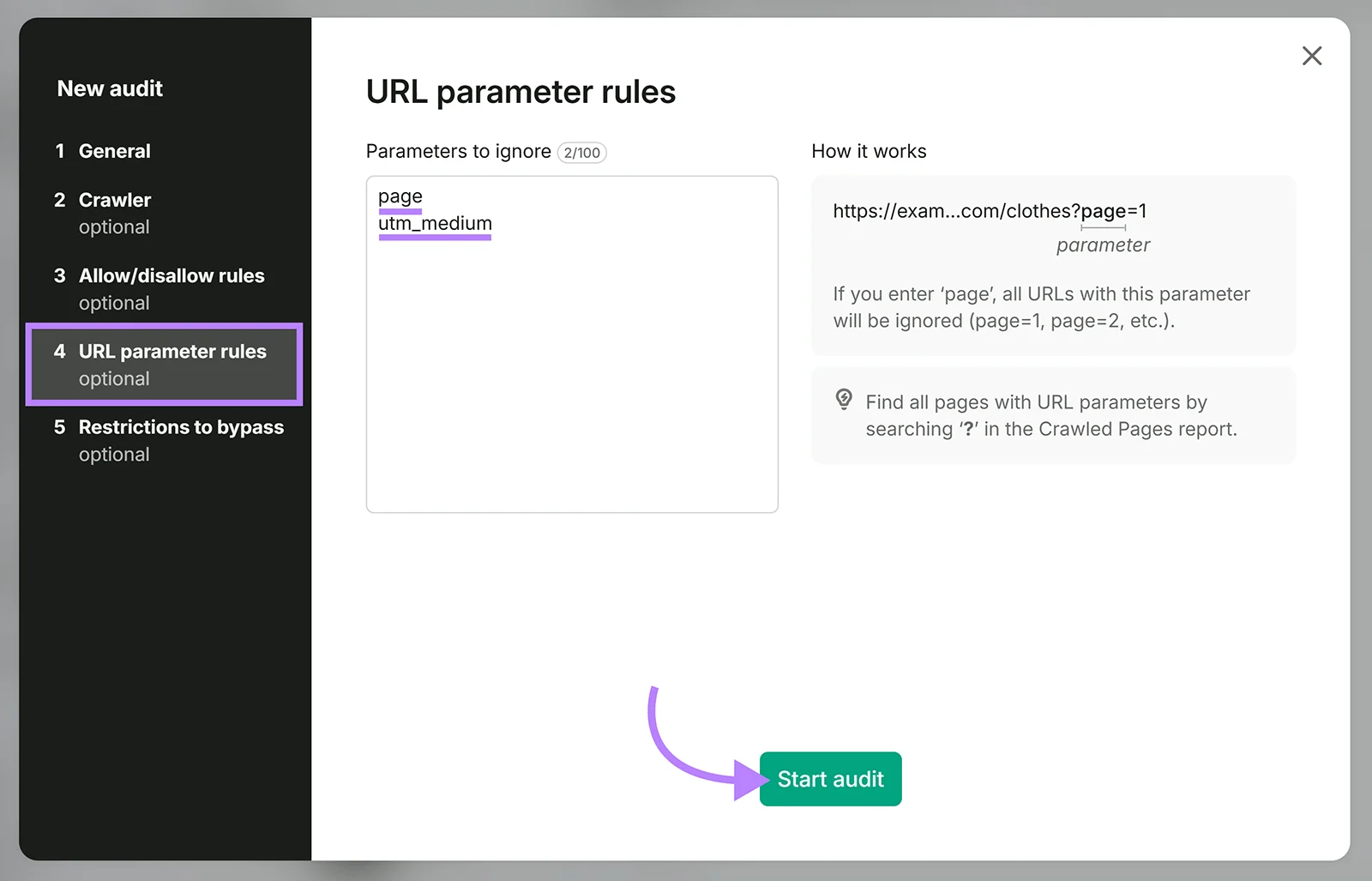
SaaS sites collect parameters from campaigns, pricing toggles and in app links.
- Add parameters like utm_source, utm_medium, ref, plan or billing.
- Semrush then crawls each URL once instead of every variant.
Step 7. Bypass Restrictions Where Needed
- Robots.txt bypass: Upload Semrush's verification file to your root to crawl pages blocked by robots.txt or meta robots.
- Credentials: Enter a username and password for staging or protected sites.
- Web Bot Auth signature: For hosts that block unknown bots. Needs a Signature Agent URL, Signature Input string and Signature value.
Step 8. Schedule and Start
- Pick weekly on a set day, daily, or once.
- Click Start Site Audit. Crawl time depends on size and crawl delay.
- Connect Google Analytics afterwards, so issues on top viewed pages stand out.
| Setting | Our SaaS Default | Why |
|---|---|---|
| Scope | Marketing domain, subdomains off | Keeps app pages out |
| Crawl source | Website, plus a sitemap audit | Finds orphans and checks sitemap hygiene |
| User agent | SiteAuditBot Mobile | Matches mobile first indexing |
| Crawl delay | Minimum, unless the server struggles | Faster audits |
| JS rendering | On | Most SaaS marketing sites rely on JavaScript |
| Disallow | Login, signup, account and app paths | No value in auditing private pages |
| Ignored parameters | UTM, ref, plan and billing toggles | Stops duplicate URL noise |
| Schedule | Weekly | Catches release regressions |
Reading the Site Audit Overview Like a SaaS Marketer
The crawl is done. Now the dashboard shows a lot. Here's what deserves your attention.
Site Health Score
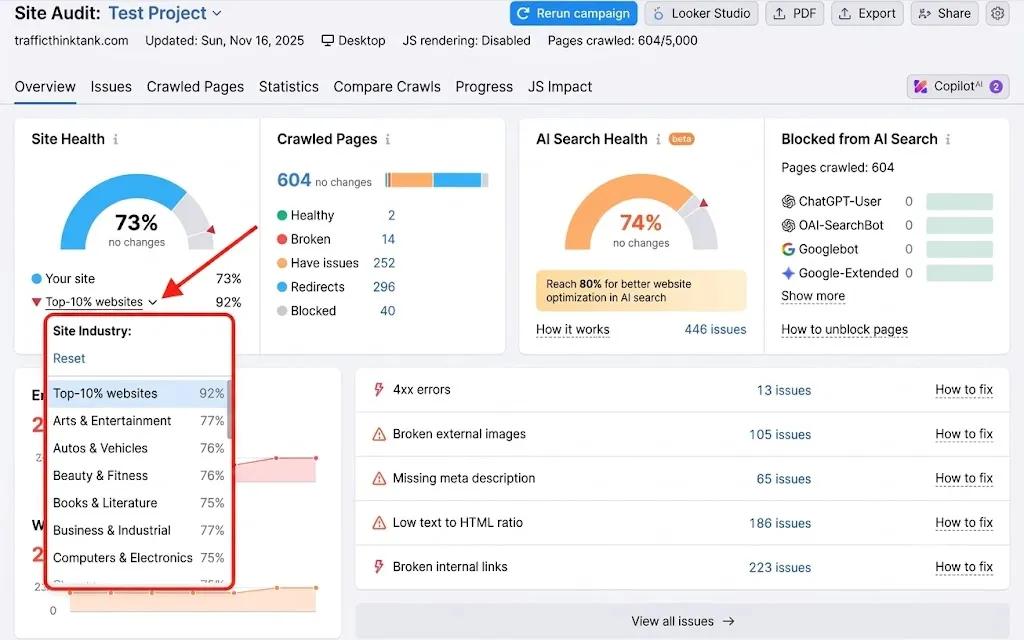
Errors, Warnings and Notices
Crawled Pages Breakdown
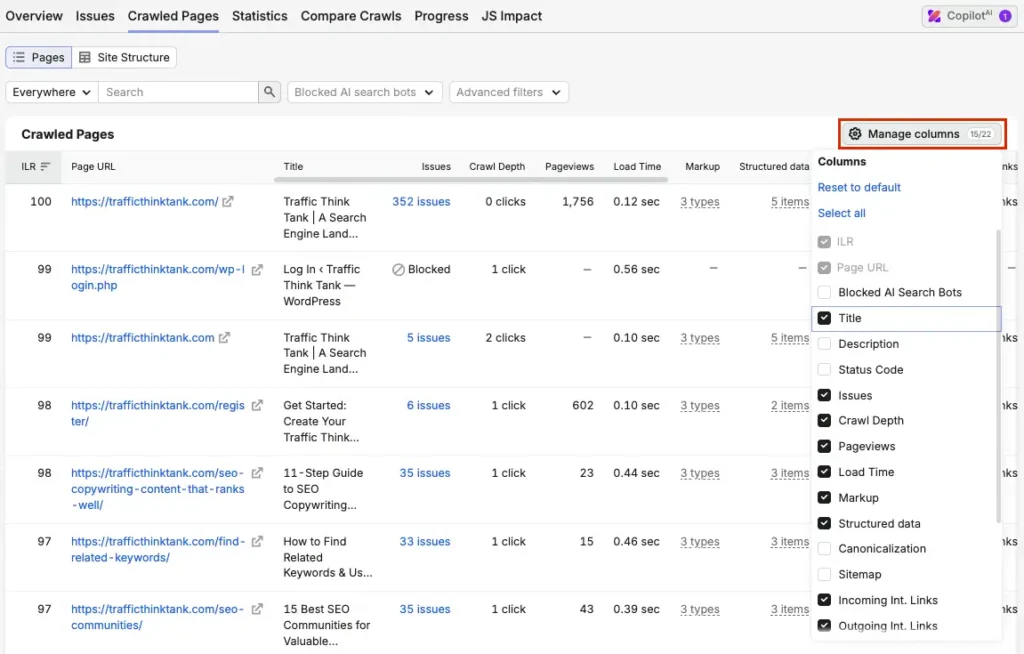
Shows pages that are healthy, broken, have issues, redirect, or were blocked. On SaaS sites, a big “redirect” slice usually points to old feature URLs and rebrands.
Top Issues and the Issues Tab
Thematic Reports That Matter Most for SaaS Websites
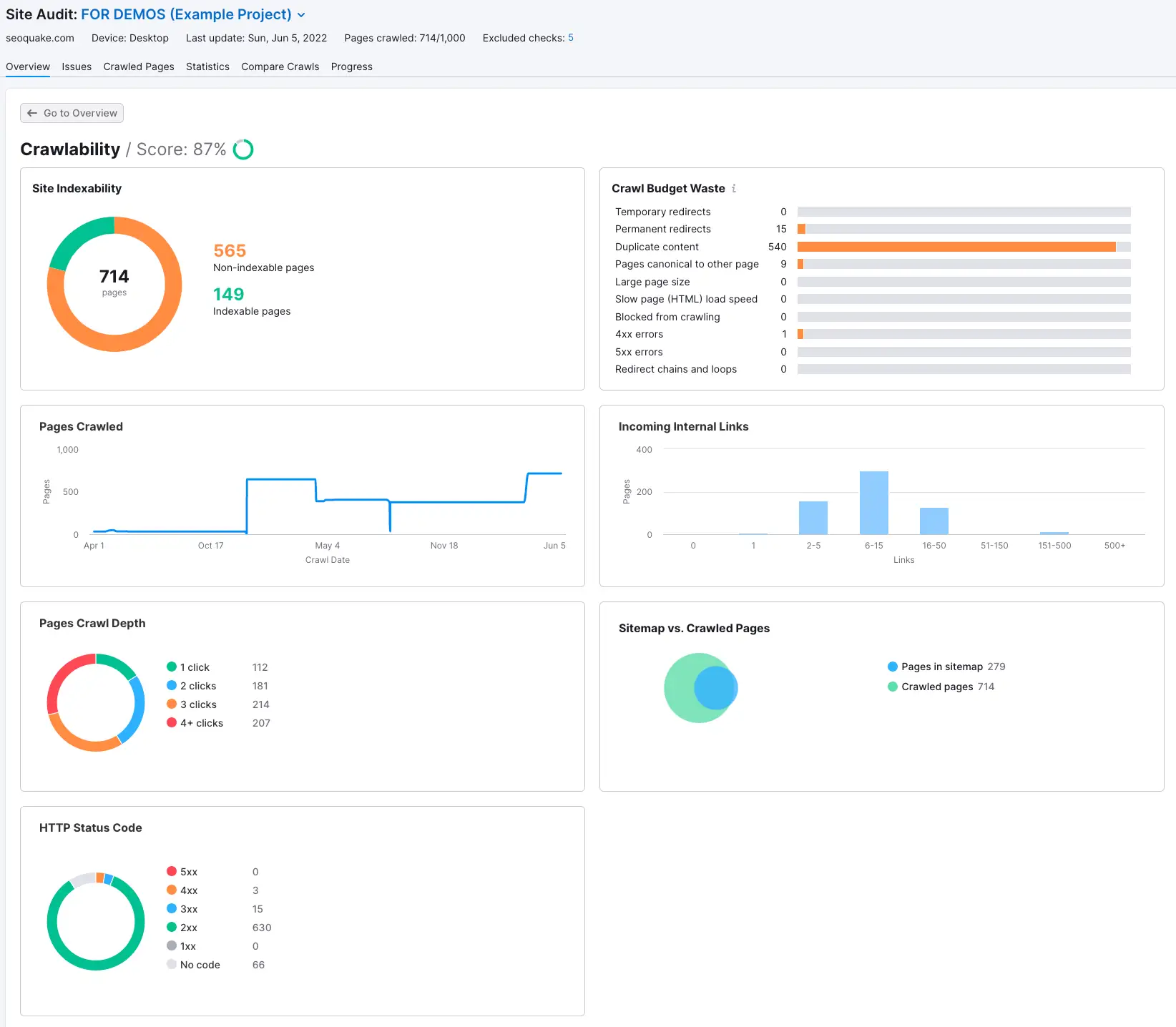
Semrush groups checks into eight thematic reports. Some matter far more for SaaS than others.
| Thematic Report | What It Covers | SaaS Focus |
|---|---|---|
| Robots.txt | Changes to robots.txt and crawl issues | Accidental blocks after a deploy |
| Crawlability | Crawl depth, status codes, sitemap vs crawled pages | Deep feature pages and sitemap junk |
| HTTPS Implementation | Certificates, server support, site architecture | Mixed content on old landing pages |
| International SEO | Hreflang tags in page HTML | Localised pricing and feature pages |
| Performance | Page size, redirects, compression, caching, minification | Heavy marketing pages with many scripts |
| Internal Linking | Click depth, orphan pages, link distribution, Internal LinkRank | Orphaned integration and comparison pages |
| Markups | Structured data, valid or invalid | FAQ, product and organisation markup |
| Core Web Vitals | LCP, CLS and Total Blocking Time via Lighthouse, on 10 pages | Homepage and pricing page speed |
Crawlability on SaaS Sites
Performance and Core Web Vitals
Internal Linking
Structured Data Checks in the Markups Report
Schema helps search engines and AI systems understand what your product is. The Markups report shows what you have and what's broken.
Schema Types Worth Having on a SaaS Site
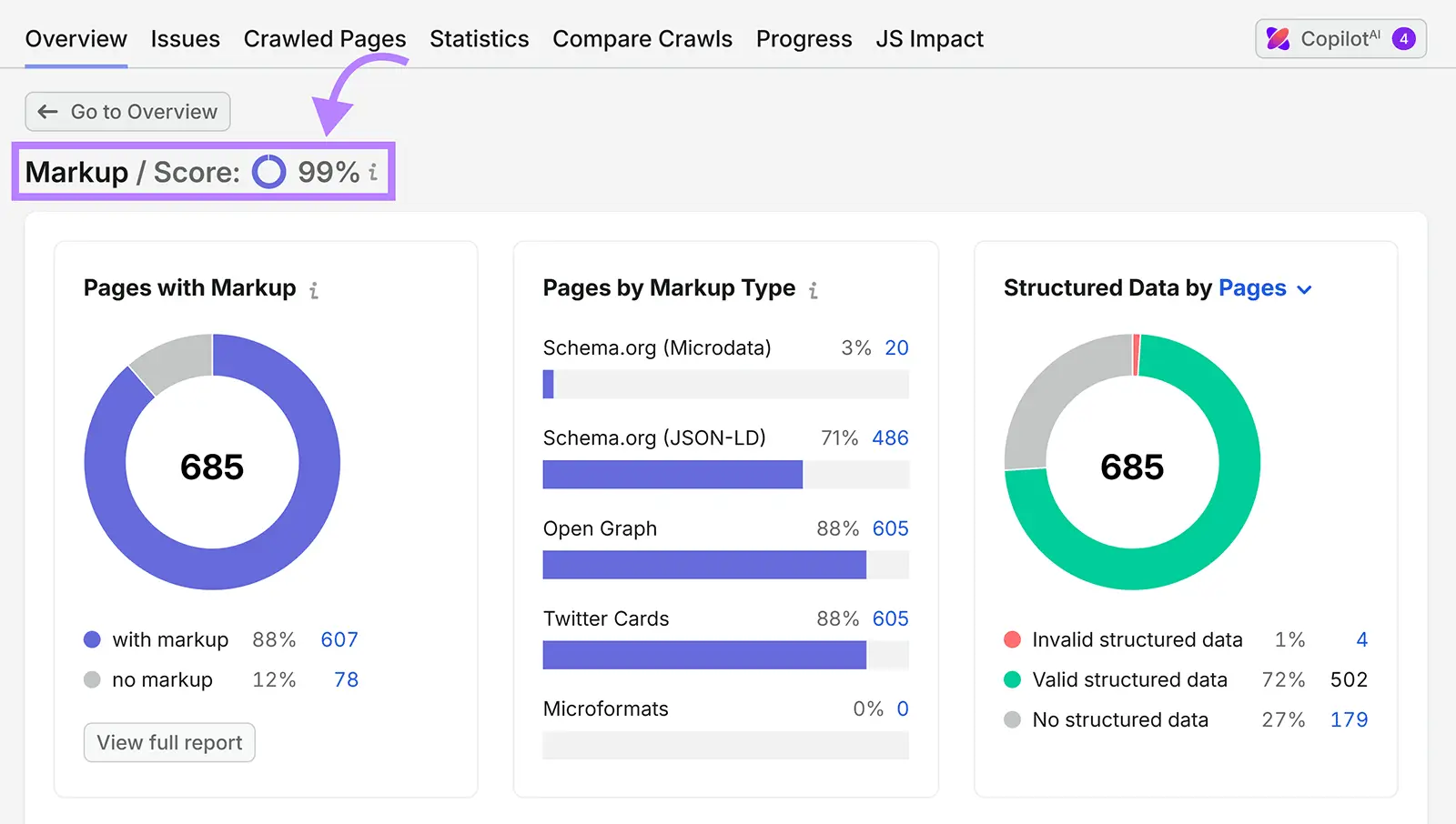
Keep schema honest. Prices, ratings and features in markup must match what users see on the page.
JavaScript Rendering Checks With the JS Impact Report
This is the report SaaS teams need most, and use least.
JS Impact compares your pages before and after JavaScript executes. It shows what changes once rendering finishes.
Semrush renders with Chromium, a stack similar to Googlebot's. So results should closely reflect what Google sees.
What to Look For on SaaS Pages
SaaSGoodies Reality Check:Many AI crawlers fetch raw HTML and don't execute JavaScript the way Google does. If your key copy only exists after rendering, AI answers may never see it. Server side rendering or static generation for marketing pages solves both problems.
AI Search Health and AI Crawler Access Checks
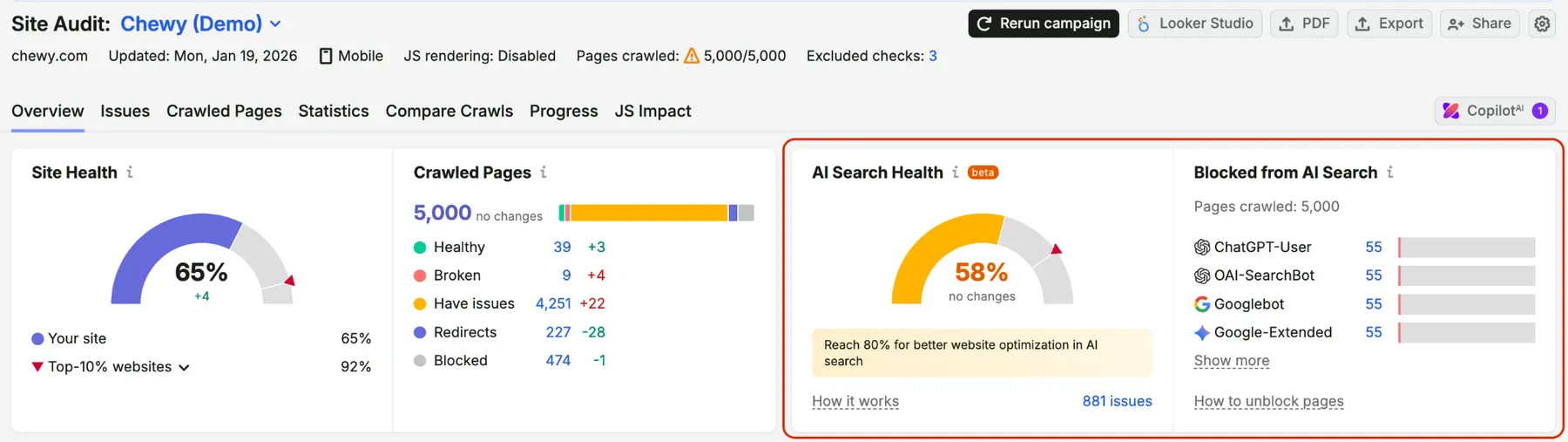
This is the newest part of Site Audit, and the one most SaaS sites ignore.
AI assistants now answer “best tool for X” questions directly. If AI crawlers can't read your site, you're out of the answer.
AI Search Health Score
Checks Inside the AI Search Category
The AI Search category is available on all Semrush subscription levels.
Blocked From AI Search Widget
Shows how many audited pages robots.txt blocks for specific AI bots. Here are the eight bots Semrush checks.
| Bot | Type |
|---|---|
| ChatGPT-User | On demand fetcher |
| Perplexity-User | On demand fetcher |
| Claude-User | On demand fetcher |
| OAI-SearchBot | AI search crawler |
| PerplexityBot | AI search crawler |
| Claude-SearchBot | AI search crawler |
| Googlebot | AI search crawler |
| Google-Extended | AI search crawler and training token |
To allow a bot, add an Allow: / rule under its user agent in robots.txt. If you use a firewall or bot protection, allow those user agents there too.
User-agent: OAI-SearchBot

Allow: /
User-agent: PerplexityBot
Allow: /User-agent: Claude-SearchBot
Allow: /Want to see your site the way ChatGPT search does? Set the crawler user agent to OpenAI-Search and compare the results.
Semrush Pricing in 2026 for Technical SEO Work
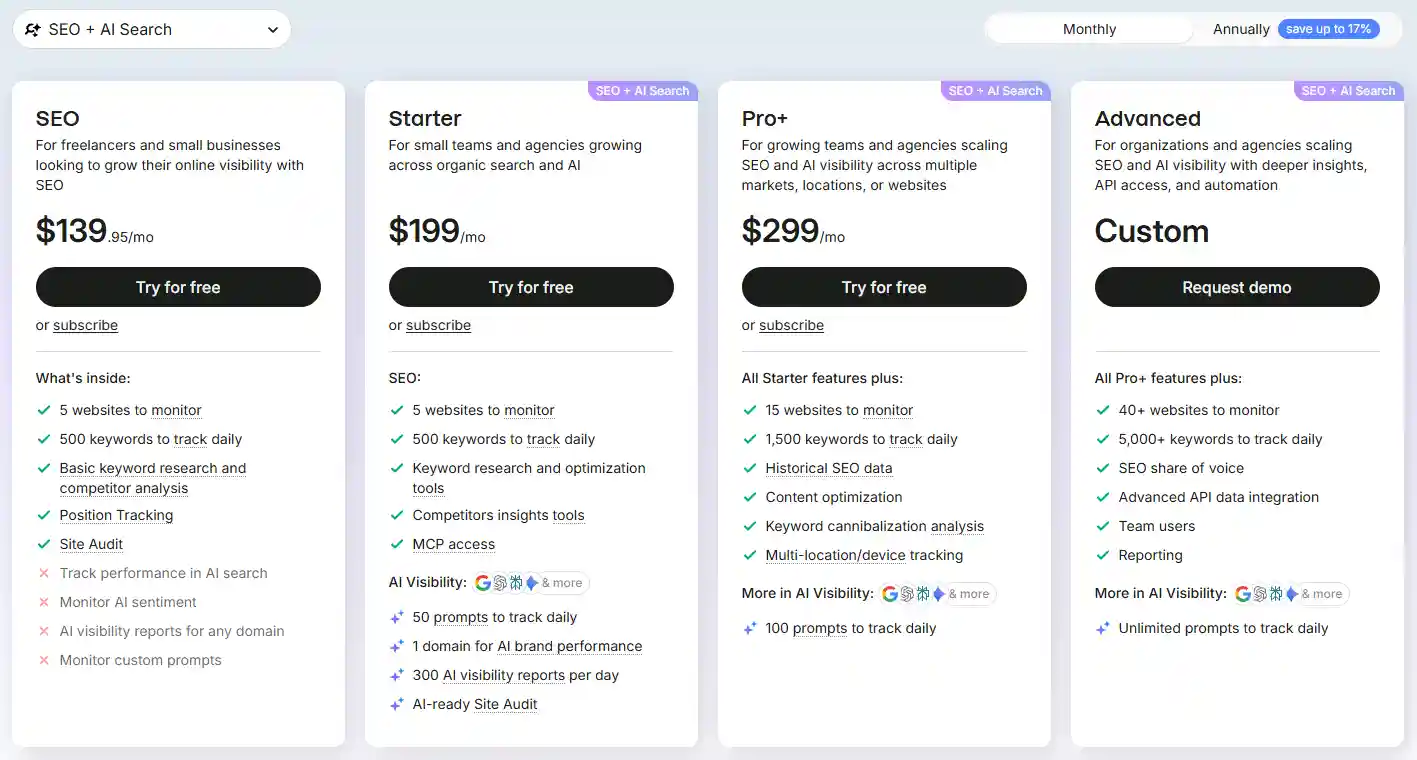
Semrush now sells its SEO features as the SEO Toolkit, or bundled inside Semrush One with AI visibility features.
| Plan | Monthly Price | Site Audit Level | Best For |
|---|---|---|---|
| SEO Toolkit Pro | $139.95 | Pro limits, no JS rendering | Small static marketing sites |
| SEO Toolkit Guru | $249.95 | Guru limits, JS rendering | Most SaaS marketing sites |
| SEO Toolkit Business | $499.95 | Business limits, JS rendering, AMP | Large SaaS sites with big docs |
| Semrush One Starter | $199 | Includes Pro | SEO plus AI visibility on a budget |
| Semrush One Pro+ | $299 | Includes Guru | Growing SaaS teams |
| Semrush One Advanced | $549 | Includes Business | Larger teams and agencies |
Annual billing lowers the effective monthly price. The AI Visibility Toolkit also sells separately for $99 per month.
Semrush Discount: Unlock Free 14-Day Pro Trial
Claim the Semrush Free 14-day Pro Trial and explore technical SEO audits, site analysis, keyword research, and powerful SEO tools.
Sitemap and Indexability Checks Every SaaS Audit Needs
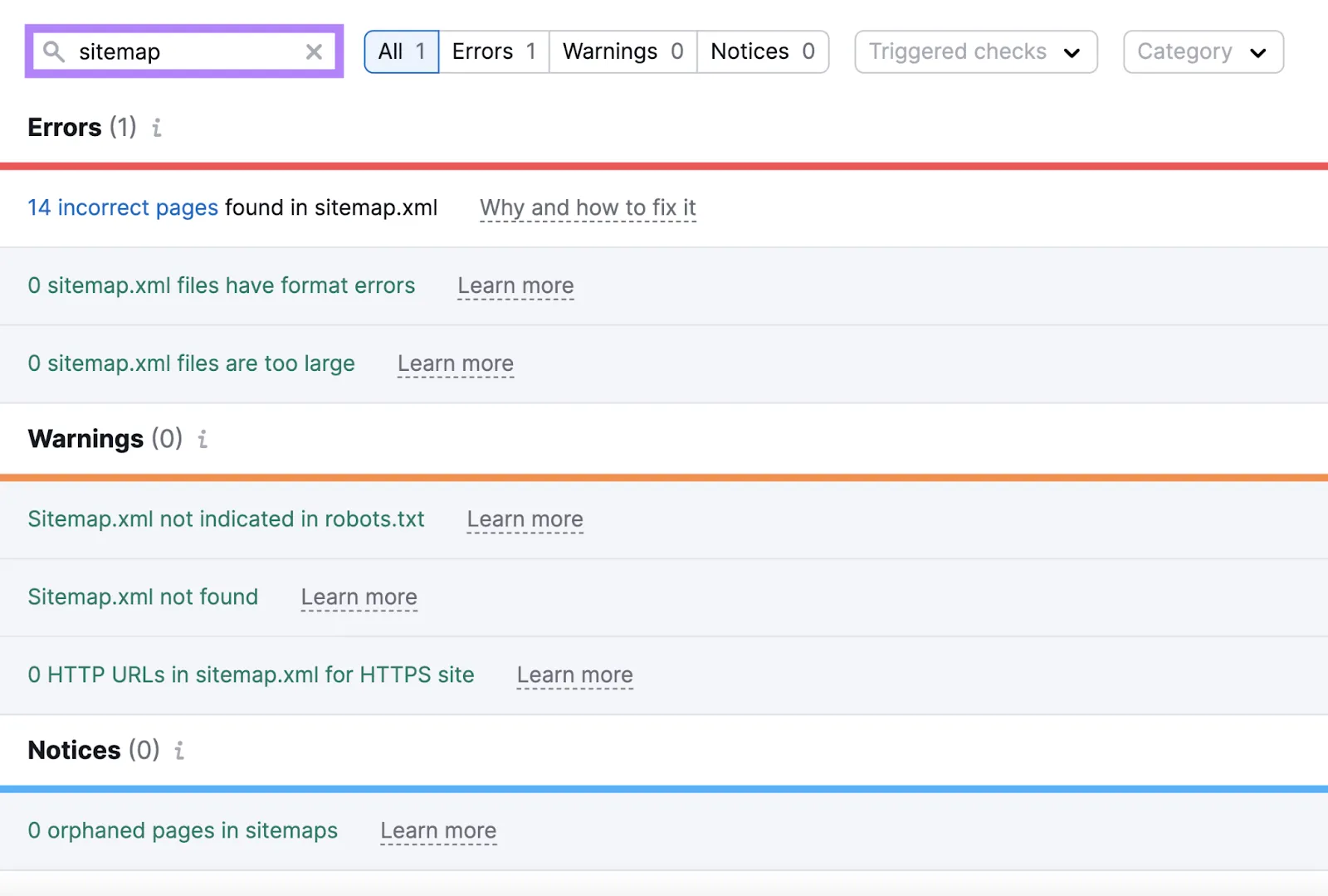
Your XML sitemap is a promise to Google. “These pages matter, please index them.”
On many SaaS sites, that promise is full of junk.
Here's the quick test we use. Set up one audit with the Website crawl source and one with the Robots.txt sitemap source. Then compare.
The Crawlability report's sitemap vs crawled pages comparison does a lot of this work for you.
Canonical Tags and Duplicate Content on SaaS Sites
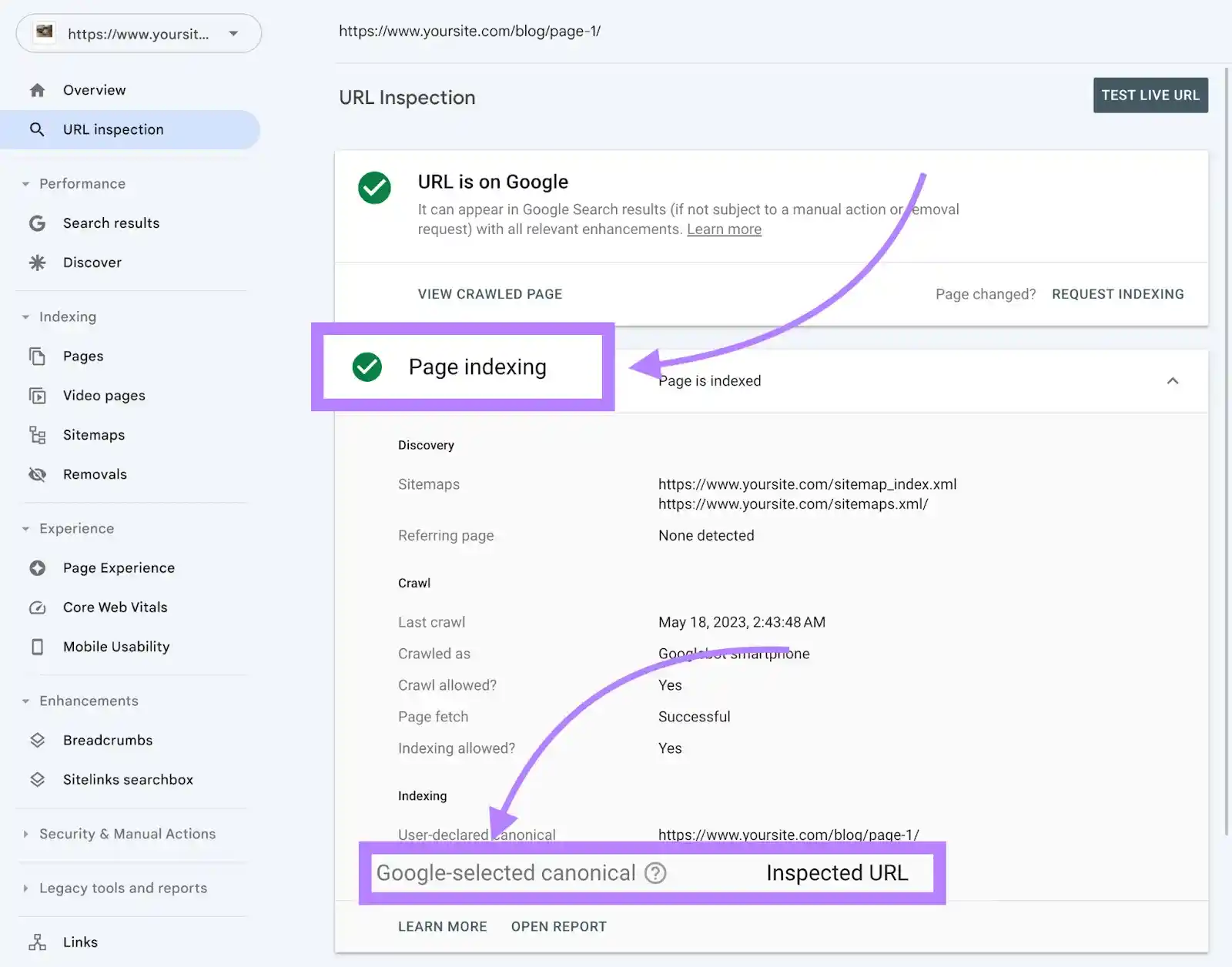
Duplicate content on SaaS sites rarely comes from copying. It comes from templates and parameters.
Where Duplicates Come From
How to Clean Them Up
After fixing, rerun the audit and check that duplicate title and description counts drop. If they don't, the canonical may only exist after JavaScript rendering. The JS Impact report will show it.
Redirects and Status Codes After Rebrands and Migrations
SaaS companies rename features, merge plans and rebrand more than almost anyone. Every change leaves redirects behind.
Planning a domain move or a CMS migration? Audit the old site before the move and save the export. After launch, audit again and compare. Any page that lost its redirect shows up fast.
SaaS Specific Technical SEO Issues and How to Fix Them
Generic audit guides miss these. They show up on almost every SaaS site we review.
| SaaS Issue | How It Shows in Semrush | Fix |
|---|---|---|
| App or login pages indexable | Crawled pages from app paths, duplicate titles | Noindex and block app areas, disallow in the audit |
| Staging site public | Duplicate content across domains | Password protect and noindex staging |
| Old plan and feature URLs | 4xx errors and broken internal links | 301 redirect to current equivalents |
| Redirect chains after rebrands | Redirect chains and loops | Point every old URL straight to the final URL |
| Pricing table rendered by JavaScript | JS Impact shows changed or missing content | Render pricing server side |
| Thin programmatic pages | Low word count, duplicate meta descriptions | Unique copy per integration or template page |
| Orphaned integration pages | Orphan pages in Internal Linking | Link from an integrations hub |
| Docs on a separate platform | Missing canonicals, duplicate titles | Self canonicals and unique titles per doc |
| UTM parameters in internal links | Duplicate URLs with parameters | Clean internal links, ignore parameters in the audit |
| Broken hreflang on localised pages | International SEO errors | Correct codes and return tags |
Pricing Pages Deserve Special Care
Your pricing page is often the highest intent page on the whole site.
Prioritising Fixes by Business Impact
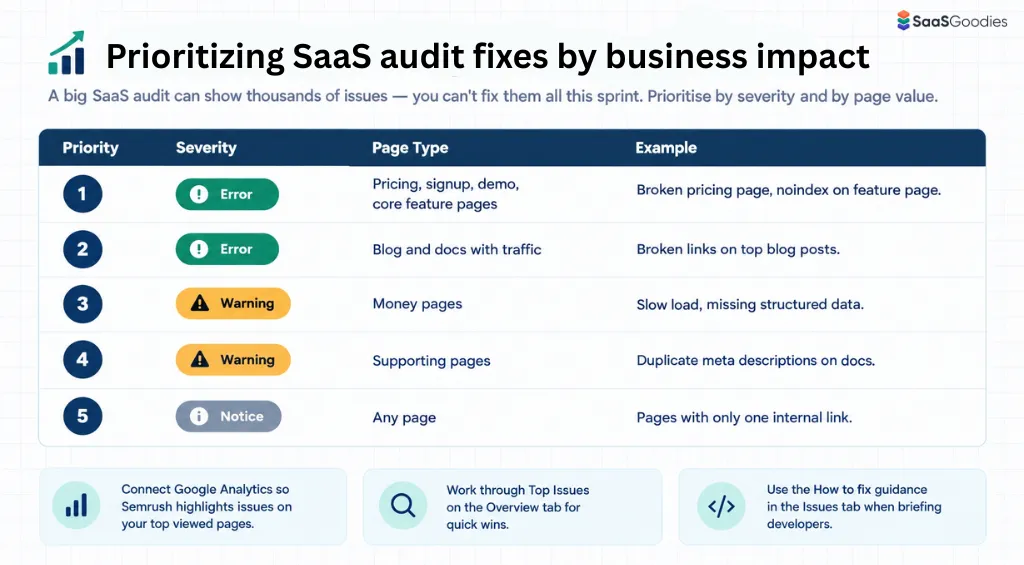
A big SaaS audit can show thousands of issues. You can't fix them all this sprint.
Prioritise by severity and by page value.
| Priority | Severity | Page Type | Example |
|---|---|---|---|
| 1 | Error | Pricing, signup, demo, core feature pages | Broken pricing page, noindex on feature page |
| 2 | Error | Blog and docs with traffic | Broken links on top blog posts |
| 3 | Warning | Money pages | Slow load, missing structured data |
| 4 | Warning | Supporting pages | Duplicate meta descriptions on docs |
| 5 | Notice | Any page | Pages with only one internal link |
Tracking Progress After Fixes Ship
What Good Progress Looks Like
SaaSGoodies Take: We schedule audits the day after the usual release day. If a deploy breaks robots.txt or canonicals, we know within a day, not a quarter.
Troubleshooting a Failed Semrush Site Audit
Final Verdict on Semrush Technical SEO Audits for SaaS
SaaS websites change every sprint. New features, new pages, new scripts, new subdomains.
Each change can quietly break crawling, rendering or indexing.
A Semrush Site Audit catches those breaks before they cost you signups. Map your site, configure the crawl properly, read the right thematic reports, and fix issues by business impact.
Then keep the audit on a schedule. Technical SEO isn't a project you finish. It's hygiene you keep.